This manual explains how landlords, property managers, and real estate agencies can use Renteric to run rental operations from one workspace.
Renteric is built for Argentina-first rental management, with support for properties, units, tenants, leases, invoices, payments, expenses, maintenance, documents, owner visibility, tenant self-service, reports, and localized financial workflows.
Visual Tour
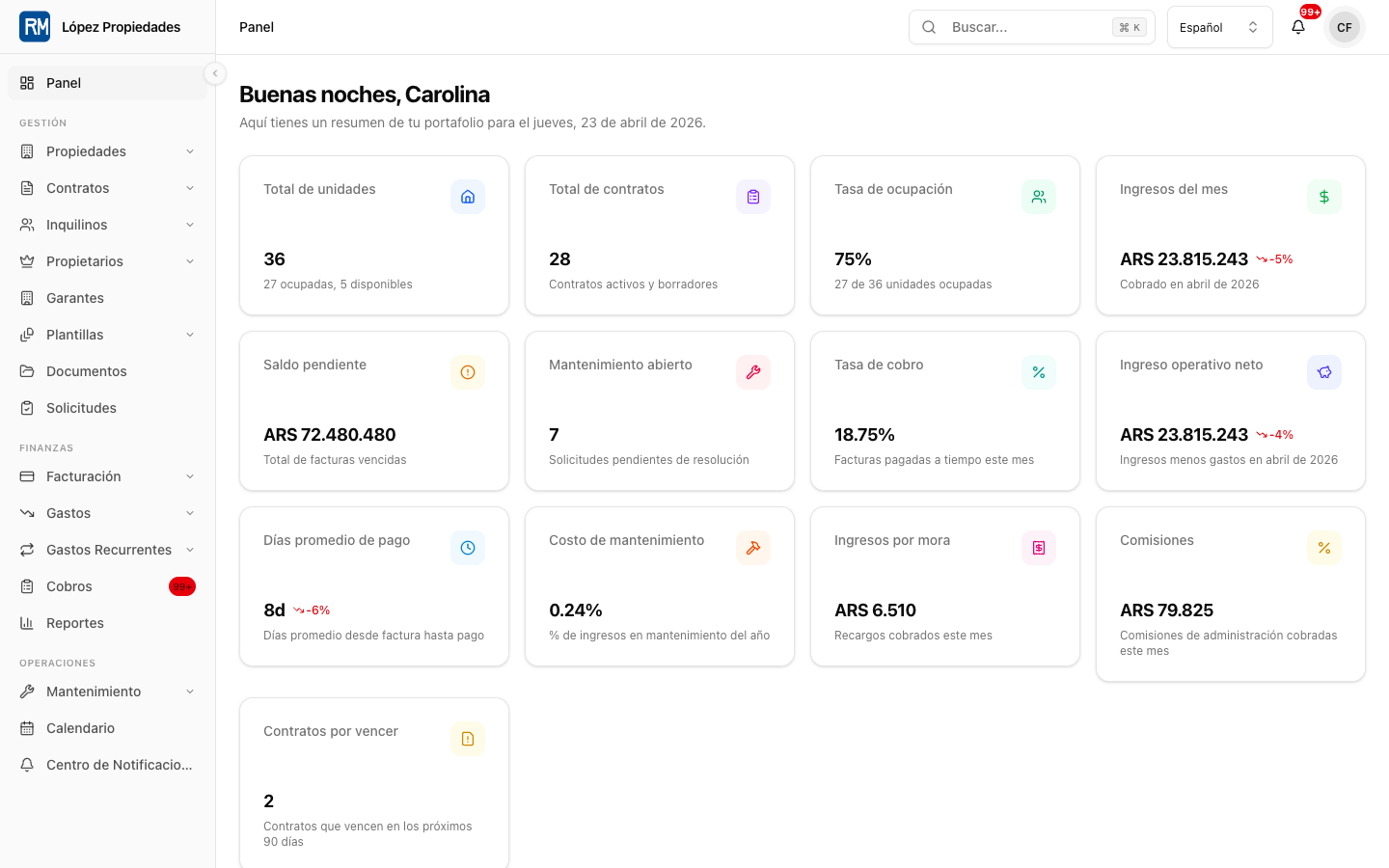
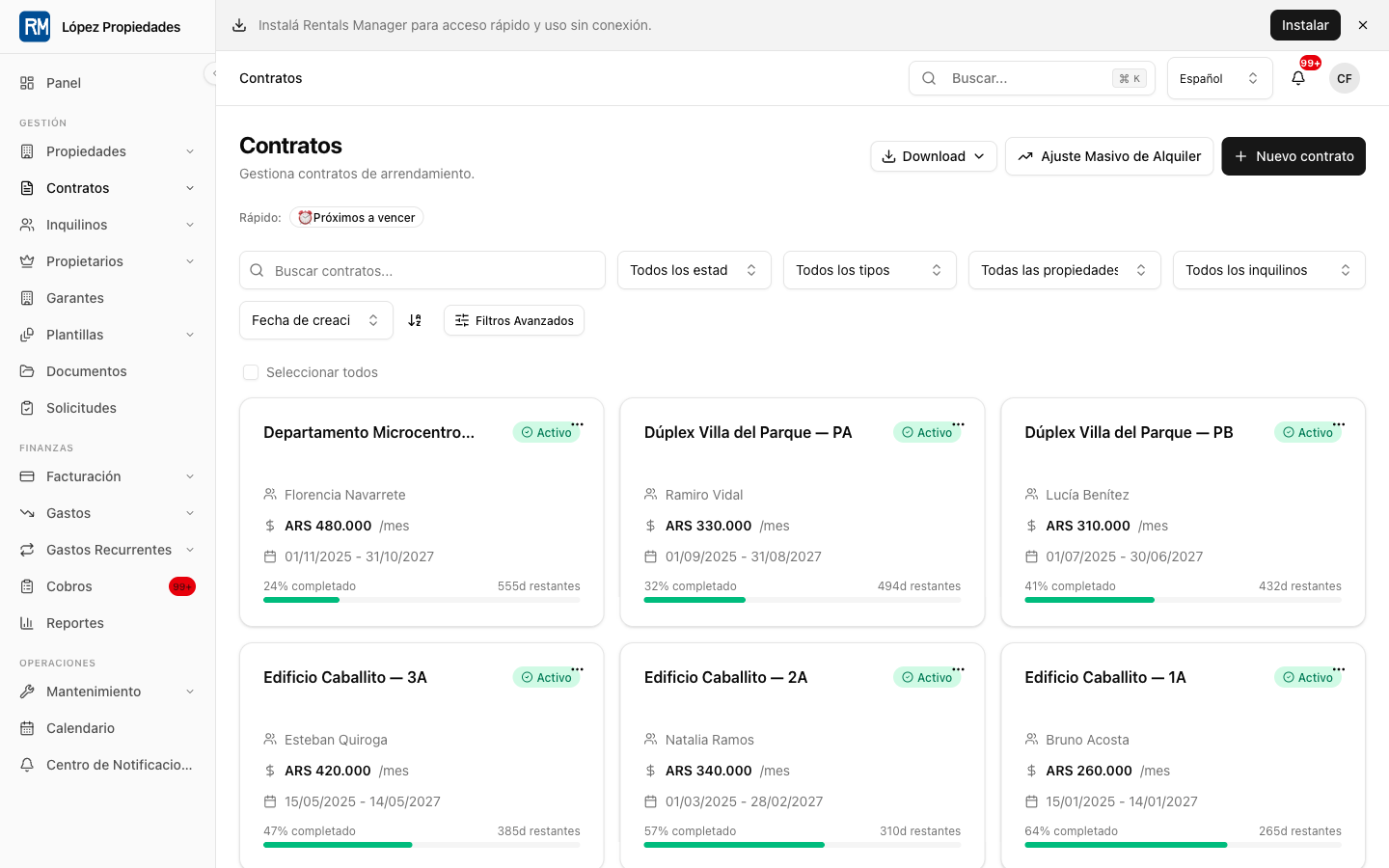
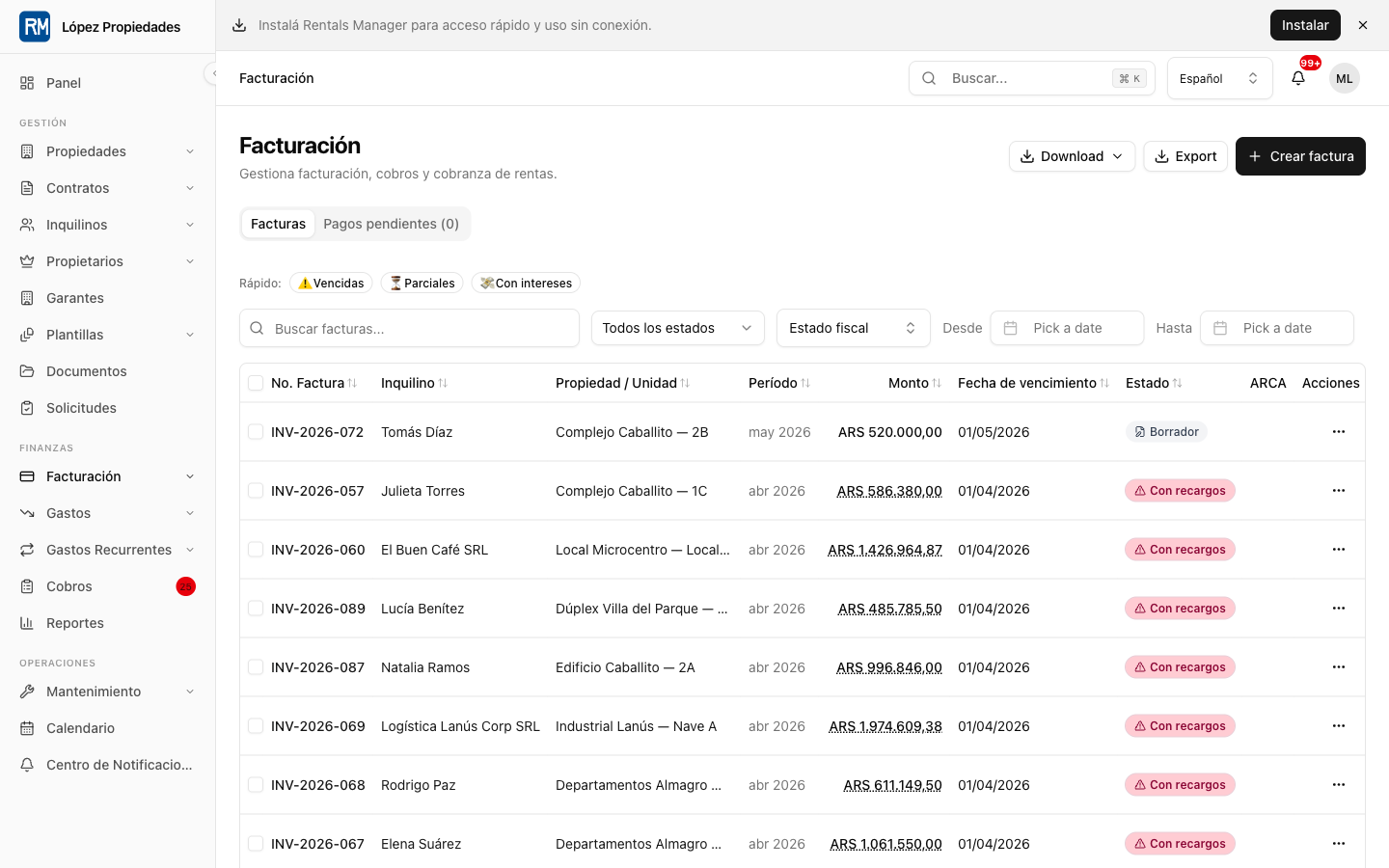
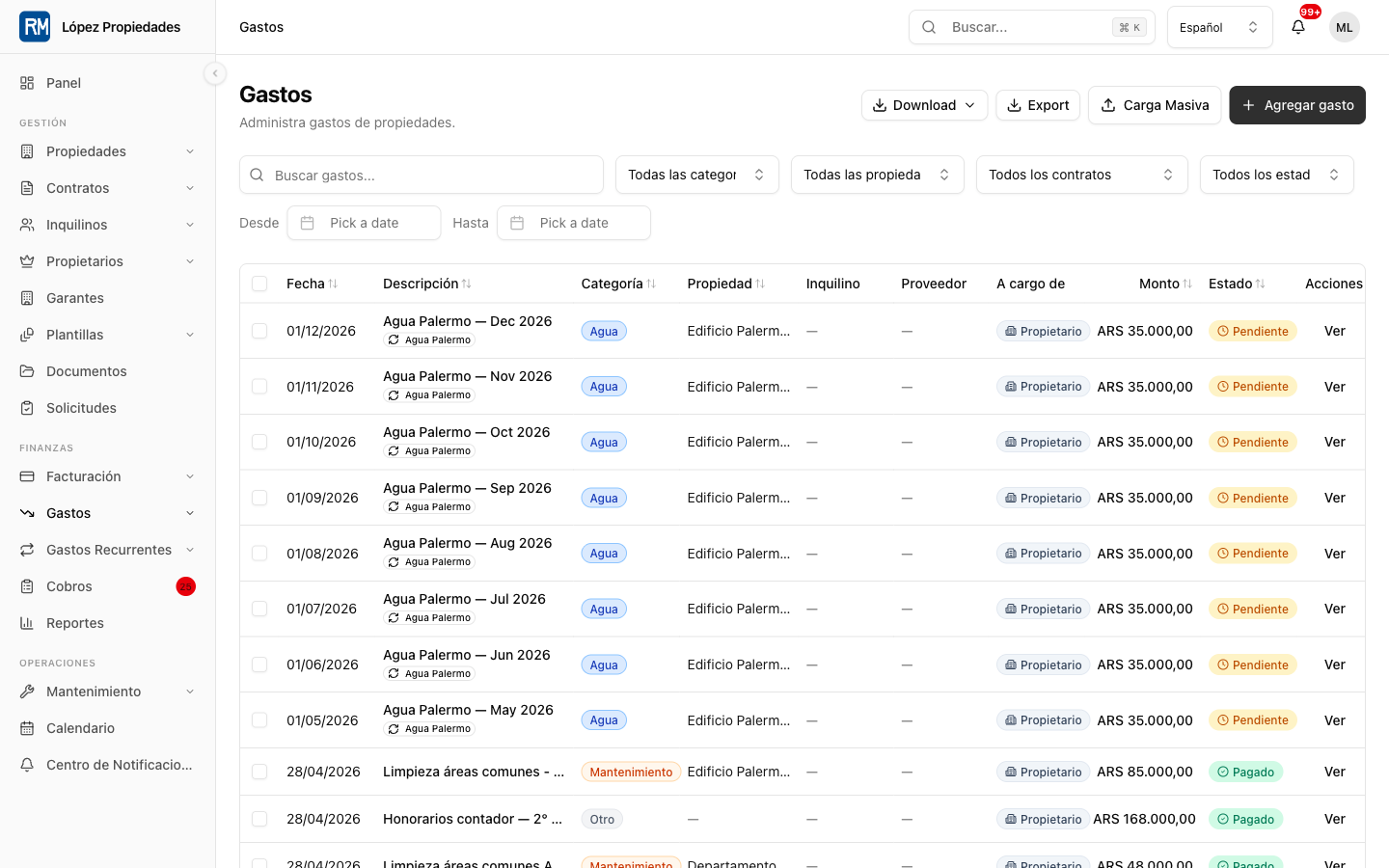
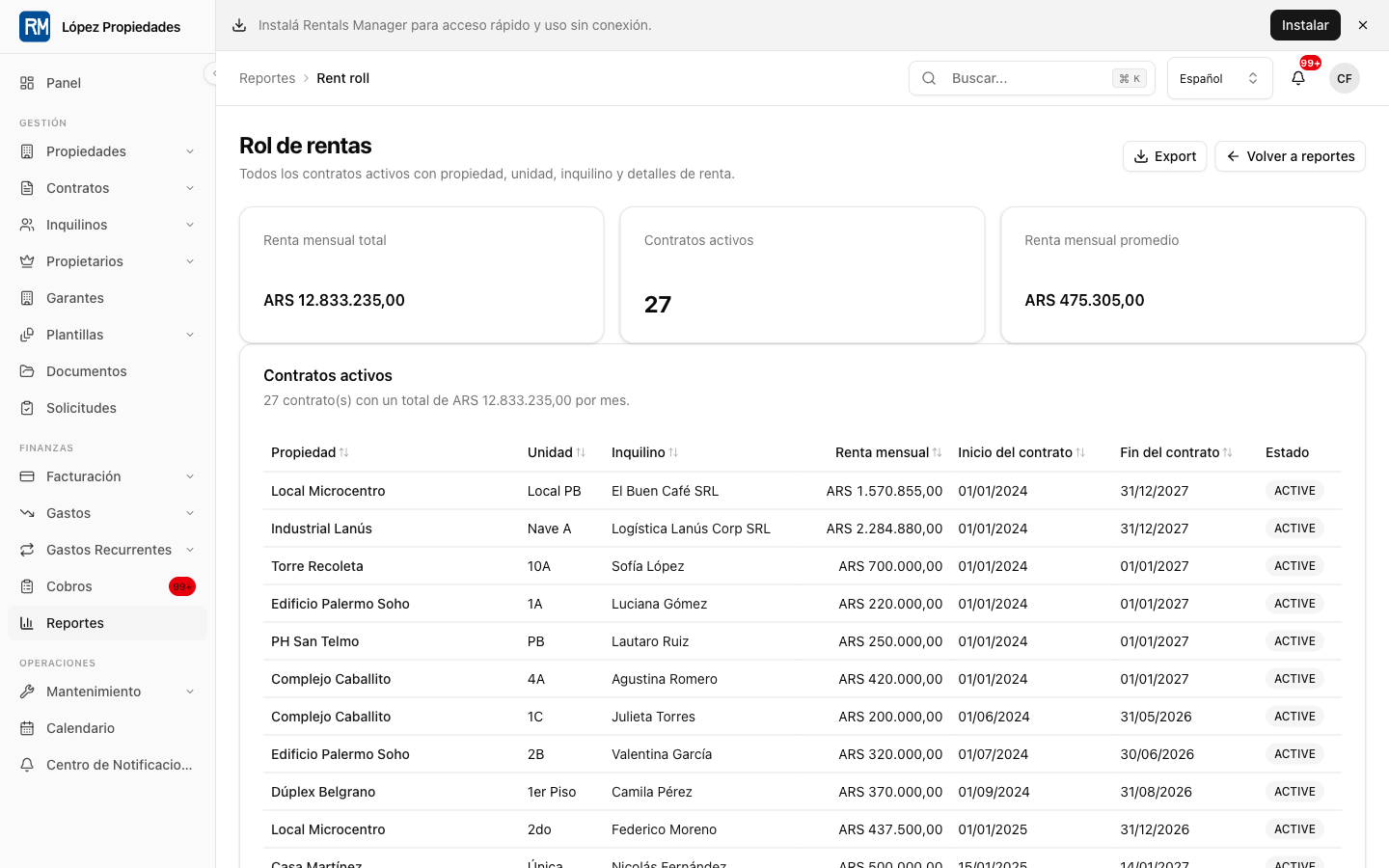
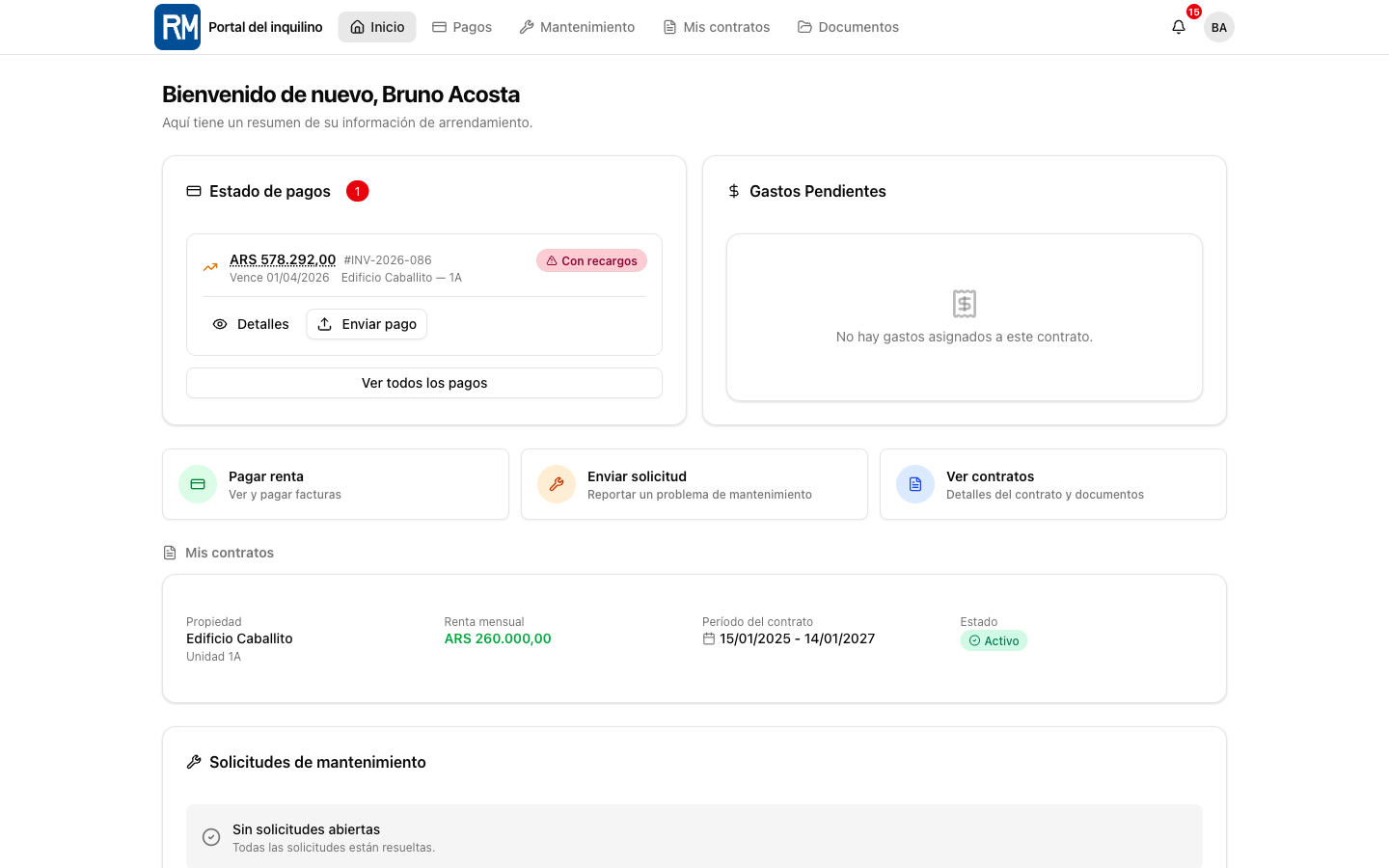
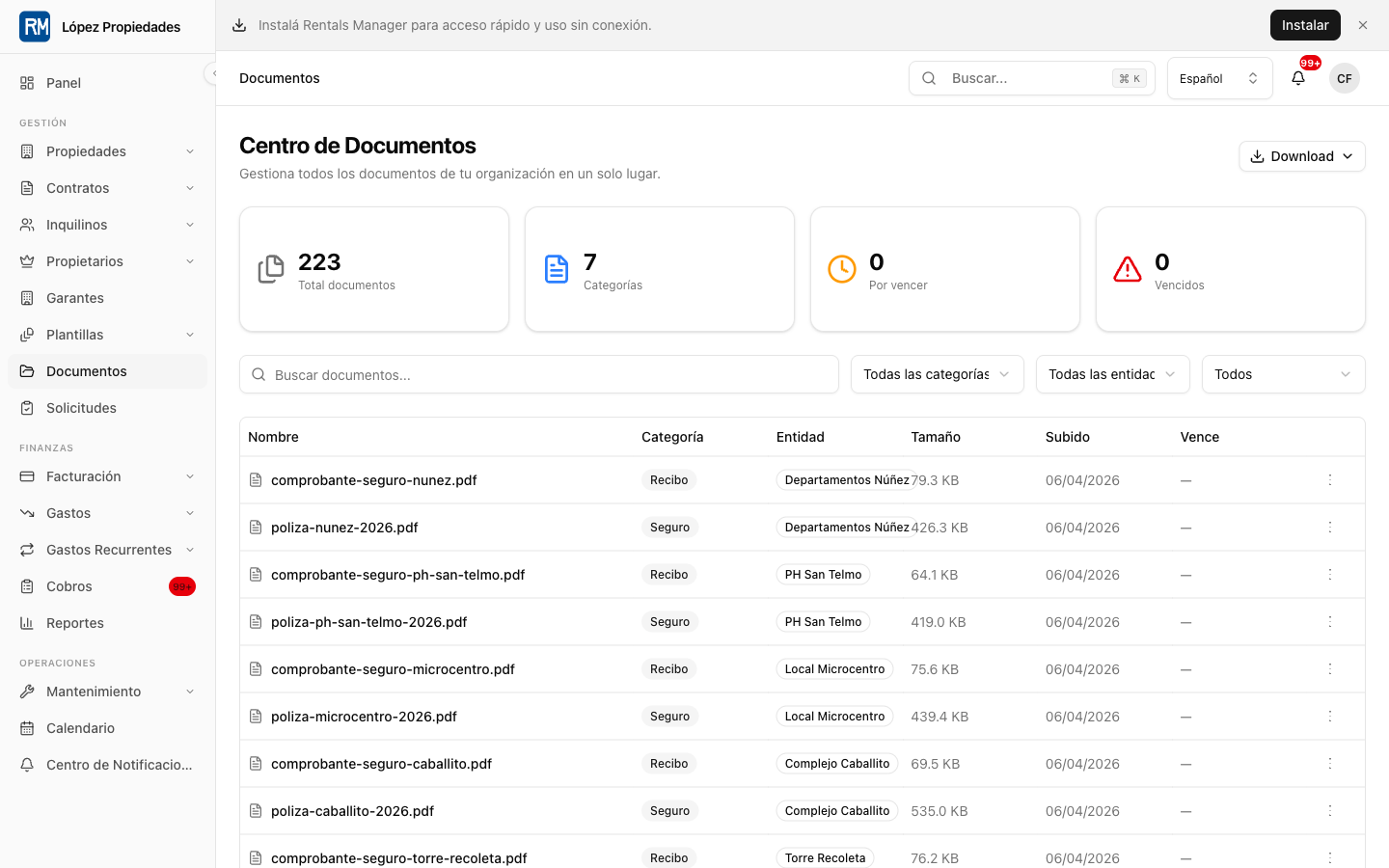
The screens below use demo data and are safe to share publicly. They show the main areas referenced throughout this manual.
1. Key Terms
| Term | Meaning |
|---|---|
| Organization | Your company, agency, or landlord account in Renteric. |
| Property | A physical property such as an apartment, house, or building. |
| Unit | A rentable unit inside a property or building. |
| Owner | The person or entity that owns a property managed by your organization. |
| Tenant | The renter linked to a lease. |
| Guarantor | A person or entity backing a tenant's lease obligations. |
| Lease | The rental contract that connects a unit, tenant, rent terms, dates, charges, and documents. |
| Invoice | A charge issued to a tenant for rent, fees, services, or other lease obligations. |
| Payment | A tenant payment, online checkout, transfer proof, or manually recorded transaction. |
| Expense | A cost related to a property, unit, owner, vendor, or maintenance request. |
| Settlement | A summary of amounts owed to an owner after rent, expenses, fees, and adjustments. |
| Portal | A self-service area for tenants or owners. |
2. First Week Setup
Use this order when setting up a new organization.
Complete your organization profile. Go to Settings and add organization name, contact details, default currency, fiscal details, branding, and notification preferences.
Add team members. Invite admins, managers, accountants, and maintenance users from Settings > Team. Assign only the roles they need.
Configure receiving accounts. Add bank accounts, aliases, CVUs, or other payment destinations in Settings > Receiving Accounts. These accounts are used in payment instructions, invoices, transfer reviews, and reporting.
Configure billing and plan settings. Check Settings > Billing to confirm your subscription and plan limits. Features such as advanced reports, owner portal, documents, recurring expenses, and automation can depend on the selected plan.
Configure tax and financial settings. Add ARCA/AFIP, IIBB, currency, economic index, invoice, and reporting settings as needed. Keep fiscal data current before issuing fiscal documents.
Add owners. Create owner records before linking them to properties. Add bank accounts and fiscal data if you use owner settlements.
Add properties and units. Enter property addresses, unit details, ownership, amenities, documents, and listing visibility.
Add tenants and guarantors. Create tenant profiles, contact details, identity data, and guarantors before or during lease creation.
Create leases. Link each lease to a property/unit, tenant, dates, rent amount, payment terms, adjustment rules, charges, deposits, documents, and notifications.
Generate or record invoices and payments. Confirm the first billing cycle works before relying on reminders or automation.
3. Dashboard Overview
The dashboard is the main workspace for your team. Common areas include:
- Dashboard: operational summary, alerts, and portfolio health.
- Properties and Buildings: property records, units, owners, assets, valuations, and maps.
- Tenants and Guarantors: renter and guarantor records.
- Leases: contracts, rent terms, documents, renewals, adjustments, deposits, and lease-level financials.
- Payments: invoices, transactions, transfer reviews, auto-pay, and payment links.
- Expenses: property costs, recurring expenses, approvals, and receipt handling.
- Owners: owner records, owner portal access, bank accounts, liquidations, and statements.
- Maintenance: requests, vendors, status tracking, costs, and tenant updates.
- Messages and Notifications: communication with tenants, owners, and team members.
- Documents and Templates: centralized files, generated documents, and signing workflows.
- Applications: public applications, prospect status, screening, and document collection.
- Reports: revenue, rent roll, income statement, delinquency, occupancy, taxes, commissions, owner/investor views, and more.
- Settings: organization, team, security, billing, integrations, taxes, branding, privacy, notifications, and public listings.
4. Managing Properties, Buildings, and Units
Use Properties or Buildings as your source of truth for the portfolio.
Recommended workflow:
Create the property or building. Add address, type, location, owner links, amenities, notes, and any internal identifiers.
Add units. For buildings, each apartment or rentable space should be a unit. For a single-house rental, you may still use one unit to keep lease and reporting data consistent.
Link owners. Add ownership percentages and management fee percentages when applicable. This supports owner reports and settlement calculations.
Upload documents and assets. Store deeds, photos, warranties, insurance policies, inspections, and other files against the relevant property or unit.
Review status. Keep unit status current so vacancy, occupancy, listings, and reporting stay reliable.
5. Owners and Owner Portal
Owners are the people or entities whose properties you manage. Use the owner record to maintain contact data, fiscal data, ownership links, and bank accounts.
Owner portal users can see read-only information such as:
- Properties and units they own.
- Active leases and rent roll.
- Financial summaries and transactions.
- Expenses and maintenance visibility.
- Reports and settlements.
- Profile, notification, and bank-account information where enabled.
Use the owner portal when you want to reduce repeated owner status requests. Keep owner data clean, because portal views are generated from the same records your team uses internally.
6. Tenants, Guarantors, and Applications
Tenant records hold contact, identity, lease, payment, and portal information. Guarantors can be linked to leases.
Applications are used before a lease exists. They can come from public listings or internal staff entry and may include screening, documents, activity history, and prospect communication.
Recommended process:
- Capture the application or create the tenant manually.
- Review documents and screening information.
- Create or update tenant and guarantor records.
- Link the approved tenant to a lease.
- Invite the tenant to the portal when self-service should begin.
7. Leases
A lease connects the rental unit, tenants, guarantors, dates, rent terms, adjustment rules, charges, documents, payment schedules, and renewal workflow.
When creating a lease, confirm:
- Property and unit are correct.
- Primary tenant and any additional tenants are linked.
- Guarantors are linked when required.
- Start and end dates match the signed agreement.
- Rent amount, currency, due day, payment frequency, and payment instructions are correct.
- Adjustment method and index settings are correct.
- Deposit, fees, utility services, and recurring charges are recorded.
- Lease documents are uploaded or generated.
- Invoice generation and reminders match your operating policy.
Use lease detail pages to review contract data, invoices, payments, documents, renewals, adjustments, tenant credits, deposits, and related activity.
8. Invoices and Payments
Invoices represent what tenants owe. Payments represent money received or proof submitted.
Common payment paths:
- Online checkout through MercadoPago or Stripe when configured.
- Manual transfer proof submitted by the tenant.
- Payment link sent by the team.
- Manual payment recorded by staff.
- Auto-pay setup when enabled.
Recommended payment workflow:
- Generate or confirm invoices.
- Send payment instructions or payment links.
- Monitor Payments and Collections for due, overdue, partial, or paid invoices.
- Review transfer proofs in the pending payment review flow.
- Approve or reject submitted proofs.
- Reconcile payments against invoices and receiving accounts.
- Send receipts or confirmations when needed.
Keep invoice status accurate. Reports, owner settlements, reminders, and tenant portal balances depend on payment status.
9. Expenses and Recurring Expenses
Use Expenses for property, unit, owner, vendor, maintenance, and operating costs.
Each expense should include:
- Property or unit.
- Owner or vendor when applicable.
- Category.
- Amount and currency.
- Due date or payment date.
- Receipt, invoice, or supporting document.
- Approval status when your workflow requires review.
Use recurring expenses for predictable costs such as building fees, services, subscriptions, insurance, or maintenance contracts. Review generated expenses regularly to make sure amounts and dates remain correct.
10. Owner Settlements and Liquidations
Owner settlements summarize what happened during a period and what should be paid to each owner.
Typical inputs:
- Rent collected.
- Tenant credits or adjustments.
- Property expenses.
- Management commissions.
- Taxes or fiscal charges.
- Prior balances.
- Transfers to owner bank accounts.
Before sending a settlement:
- Confirm all invoices and payments for the period are reconciled.
- Confirm expenses are assigned to the correct property, unit, and owner.
- Confirm management fee percentages are correct.
- Review any manual adjustments.
- Generate the settlement, receipt, PDF, or fiscal document if applicable.
- Share through the owner portal or your normal communication channel.
11. Maintenance and Vendors
Maintenance requests can be created by staff or submitted by tenants through the tenant portal.
Use maintenance records to track:
- Property and unit.
- Request description and priority.
- Photos or attachments.
- Assigned team member or vendor.
- Status and internal notes.
- Tenant-facing updates.
- Related expenses.
Vendor records keep service-provider contact details, categories, documents, and maintenance history.
12. Documents, Templates, and Signatures
Use Documents as the centralized file vault for contracts, receipts, invoices, identity files, inspection records, and other operational documents.
Document templates help standardize common rental documents. Signature workflows let you request and track digital signatures for lease documents or other files.
Best practices:
- Store documents against the most specific record available.
- Use templates for repeated legal or operational documents.
- Confirm signer email/contact data before sending.
- Track signature status before marking a document process complete.
13. Reports
Reports help you monitor portfolio health and provide owner/accounting outputs.
Common reports include:
- Revenue.
- Rent roll.
- Income statement.
- Occupancy.
- Delinquency.
- Payment reliability.
- Property ROI.
- Year over year.
- Cash flow projection.
- Tax summary.
- IIBB and Bienes Personales.
- Security deposits.
- Commissions.
- Investor dashboard.
Use filters by property, owner, period, status, and category where available. Export reports when you need offline analysis or accountant handoff.
14. Tenant Portal
The tenant portal reduces manual back-and-forth. Tenants can use it to:
- View lease information.
- Review invoices and payment history.
- Pay online where enabled.
- Submit transfer proof.
- Upload service or expense receipts.
- Open maintenance requests.
- Send and receive messages.
- View documents and inspections.
- Respond to renewal or signature requests.
- Manage profile, notifications, and settings.
Invite tenants only after their lease and contact information are correct.
15. Public Listings and Applications
Renteric can publish property listings through public pages, agency listing hubs, and organization subdomains.
Use listings to:
- Show available rental properties.
- Capture inquiries.
- Start rental applications.
- Move prospects into a self-service application flow.
- Collect documents and screening information.
Keep listing data synchronized with property/unit status so unavailable units do not continue receiving inquiries.
16. Team, Roles, and Access
Assign roles based on job responsibility:
| Role | Typical use |
|---|---|
| Admin | Organization owner or senior operator with broad access. |
| Manager | Property manager handling operations for assigned properties. |
| Accountant | Financial staff handling invoices, payments, expenses, and reports. |
| Maintenance | Staff or coordinator handling maintenance and vendors. |
| Owner | Property owner using the owner portal. |
| Tenant | Tenant using the tenant portal. |
Review team access regularly. Remove users who no longer need access and avoid sharing accounts.
17. Settings and Integrations
Important settings areas:
- General: organization profile, defaults, and operational preferences.
- Branding: colors, logo, and public-facing identity.
- Team: members, roles, and access.
- Billing: subscription and plan.
- Finance and currency: rates, benchmarks, and economic settings.
- Receiving accounts: payment destinations.
- Tax: fiscal settings and certificates where applicable.
- Integrations: providers such as Tokko, Gmail, crypto, payments, or messaging where enabled.
- Notifications: email, push, reminders, and digest preferences.
- Privacy and security: data export, deletion requests, 2FA, and account security.
- Public listing: listing visibility and agency/public page settings.
18. Daily Operating Checklist
Use this checklist at the start of each workday:
- Review dashboard alerts.
- Check overdue invoices and collections.
- Review pending transfer proofs.
- Review new applications and inquiries.
- Check maintenance requests and vendor follow-ups.
- Confirm upcoming lease expirations and renewals.
- Review expenses pending approval.
- Check owner settlement or report deadlines.
- Review notification failures or unread messages.
19. Month-End Checklist
At month end:
- Confirm all rent invoices were generated.
- Reconcile paid, partial, overdue, and cancelled invoices.
- Review manual payment proofs and receiving account movements.
- Approve or reject pending expenses.
- Confirm recurring expenses generated correctly.
- Review owner settlement inputs.
- Generate owner statements or settlements.
- Export reports for accounting.
- Archive or upload missing documents.
- Check lease renewals, expirations, and upcoming adjustments.
20. Common Questions
Why does a user not see a feature?
Check the user's role, assigned properties, subscription plan, and whether the feature is enabled for the organization.
Why is an invoice not marked paid?
Check whether the payment was approved, matched to the invoice, and completed by the payment provider or manual review process.
Why does an owner not see a property?
Check that the owner record is linked to the property through ownership data and that the owner user is linked to the correct owner record.
Why does a tenant not see the right lease?
Check that the tenant record is linked to the lease and that the tenant user is linked to the correct tenant profile.
Why did a reminder not send?
Check notification settings, contact information, subscription/plan gates, background job status, and whether the invoice or lease status qualifies for the reminder.
Can I use Renteric without online payments?
Yes. You can record manual payments and review transfer proofs. Online checkout requires a configured payment provider.
21. Best Practices
- Keep property, unit, tenant, owner, and lease data complete.
- Use the tenant portal to reduce payment and maintenance follow-up.
- Use the owner portal to reduce recurring reporting requests.
- Record expenses as they happen, not only at month end.
- Attach source documents to invoices, payments, expenses, and leases.
- Review pending payments daily.
- Review owner settlements before sending them.
- Keep fiscal and payment settings updated.
- Use roles instead of shared accounts.
- Export reports before making large operational or accounting changes.
22. Getting Help
When reporting an issue to your internal team or Renteric support, include:
- Your organization name.
- The page or workflow where the issue happened.
- The property, unit, owner, tenant, lease, invoice, or expense involved.
- What you expected to happen.
- What actually happened.
- Screenshot or exported file if relevant.
- Approximate time and user account.
Do not send passwords, API keys, bank credentials, private certificates, or other secrets through support channels.